 MicroURL
Send visitors to the right page
One short link and one QR code, several pages behind it: by country or device, split between pages for an A/B test, and opened in the phone's real browser. All on every plan.
Open the link you want to change
Go to Links, open a link, and stay on its Details tab. Everything below is set there, and nothing about the printed QR code or the short link changes.
Route by country or device
Under the routing section, enter a two-letter country code (like CA), a device (phone, tablet or desktop) or platform (iPhone and iPad, or Android), or a country and a device, plus the page those visitors should see. Click Add. Rules are checked in the order you added them; anyone who matches none goes to the link’s own page.
Examples: a store sends Canadian visitors to its .ca shop and everyone else to the US site, from one code on the packaging. An app puts one QR code on its posters that opens the App Store on iPhones and Google Play on Android phones.
Show a page in each visitor’s language
Under Pages by language, pick a language, paste the page for it, and click Add language. Visitors whose phone or browser is set to that language get that page; everyone else gets the link’s own page. One page per language, up to ten.
Example: a restaurant prints one QR code on its tables. Guests with a phone in Spanish see the Spanish menu, guests in Vietnamese see the Vietnamese one, and the code never changes.
Split traffic between pages (A/B test)
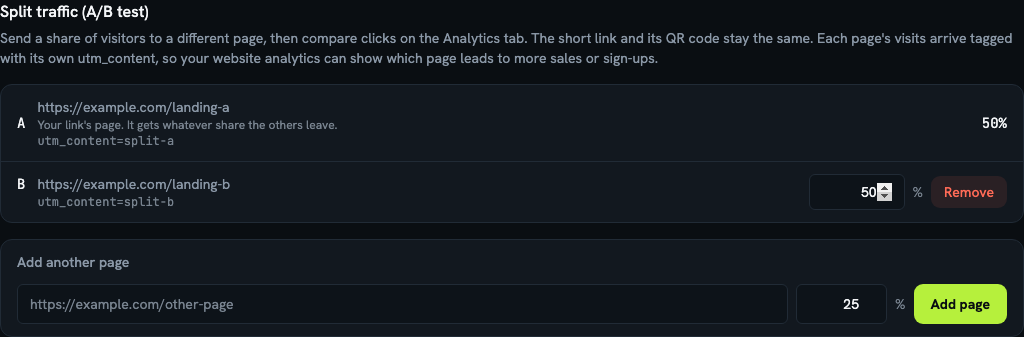
Under Split traffic (A/B test), add a second page and the share of visitors it should get, say 50%. Your link’s own page is page A and keeps whatever share is left. You can add up to five pages and change a share any time.
Each page’s visits arrive tagged with its own utm_content (split-a, split-b, and so on), so your website analytics can show which page leads to more sales or sign-ups.
Compare the pages
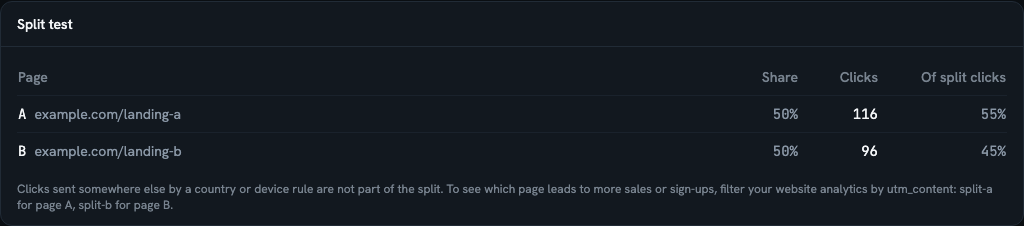
Open the link’s Analytics tab. The Split test card shows how many clicks each page got in the date range you picked. Remove a page when you’ve seen enough; its share goes back to page A and its past clicks stay.
Open links in the real browser on Android
Tick Open in native browser on Android on the link. Someone tapping it inside Instagram, Facebook or LinkedIn on Android then lands in their phone’s browser, where they’re already signed in and checkout works, instead of the app’s built-in one. iPhones and TikTok are not affected.
How they work together
A country or device rule decides first, then the visitor’s language. Everyone neither catches goes into the split. The in-app browser setting then applies to whichever page was chosen. Every redirect still happens in under 50 milliseconds, and nothing on your pages needs to change.