 MicroURL
All guides
Inviting your team
Share one MicroURL workspace with your team instead of everyone using separate accounts.
1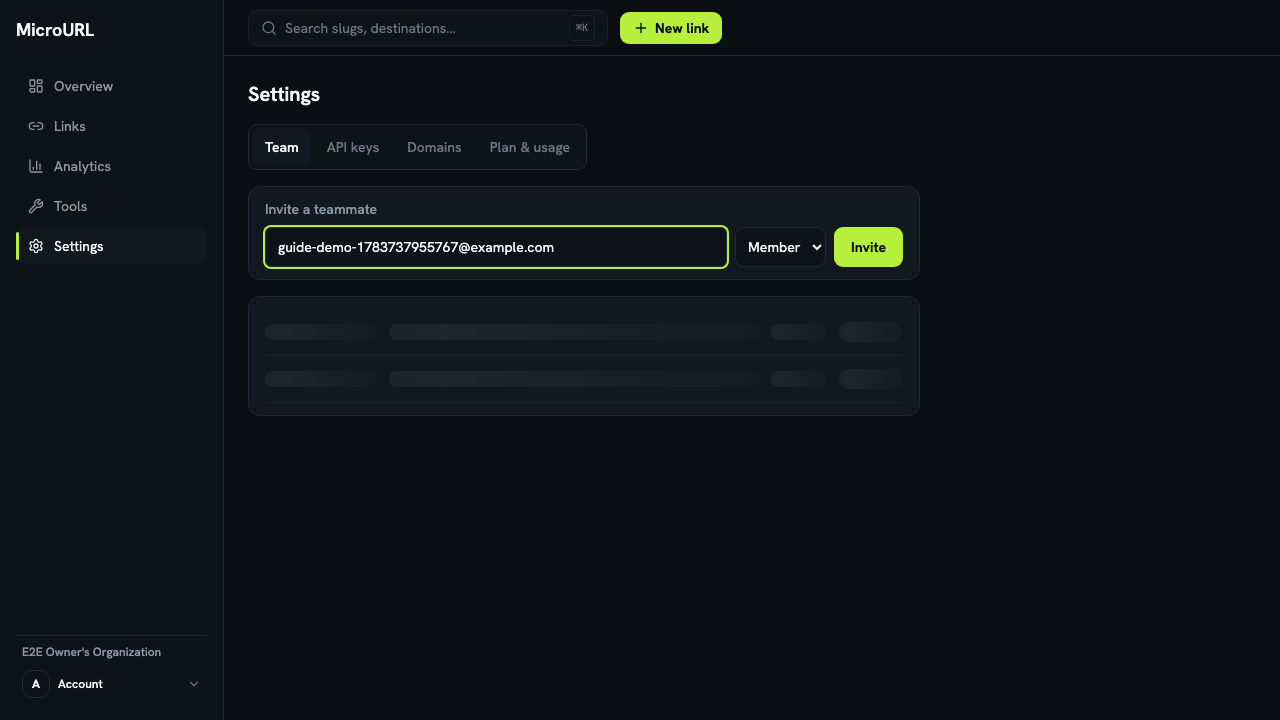
Go to Settings → Team
Enter your teammate’s email address and choose a role: Member or Owner.
2
Click “Invite”
They’ll appear in your team list immediately as Pending, so you can see the invitation is out even before they accept it.
3
They accept by email
Your teammate gets an email with a link to join. Once accepted, they show up as an active member of your workspace with the role you chose. If they already use MicroURL, they click Join and the workspace appears in their workspace switcher next to their own.
4
Remove someone, or leave
Everyone in the workspace is listed under Settings → Team. An owner can Remove anyone, and anyone can Leave. Links they made stay in the workspace. A workspace always keeps at least one owner.